


Apple’s macOS updates have been pretty boring lately, and the most interesting part of last year’s macOS Sonoma was the widgets. Widgets! Thankfully, macOS Sequoia has a lot more to offer. At least, there will be a lot more as Apple Intelligence rolls out in the coming months. But for now, Sequoia offers some handy features, like iPhone mirroring, a full-fledged password app, and automatic transcription in the Notes app. At the very least, there’s a lot more to offer than widgets.
iPhone Mirroring Changes Everything for Your Mac
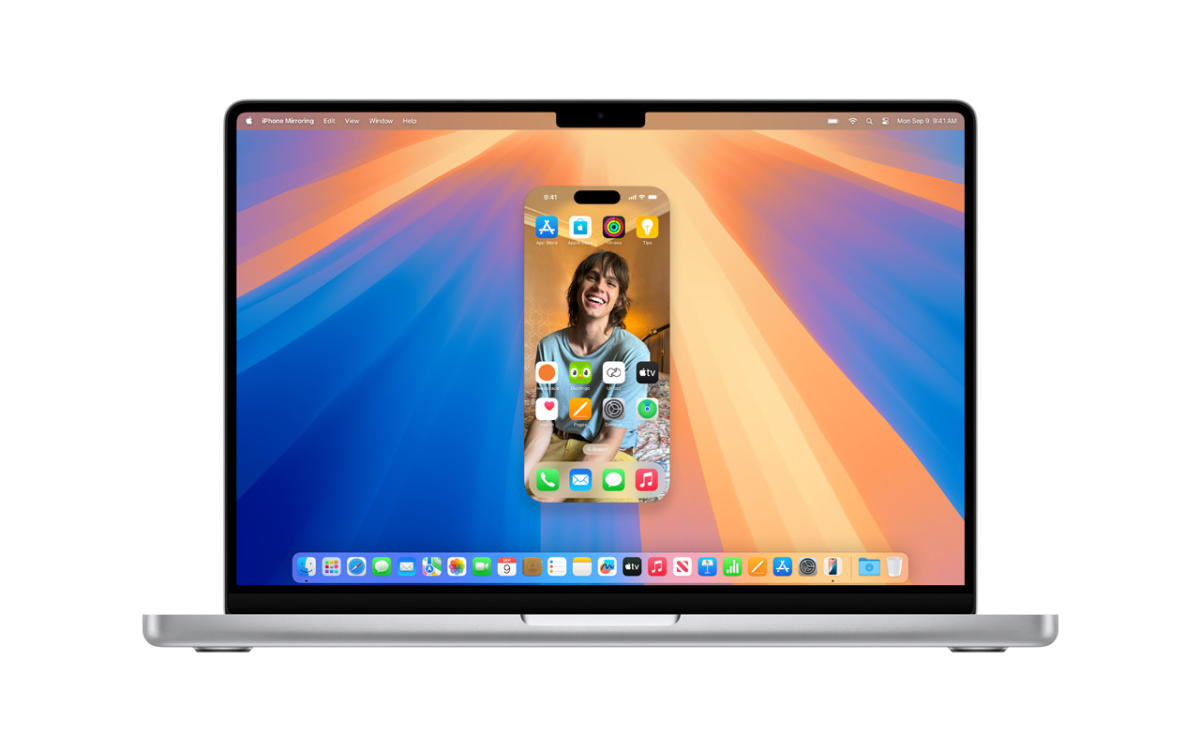
Leading up to WWDC earlier this year, I was hoping that Apple would make it as easy for Vision Pro users to mirror their iPhones as it is to mirror their Macs. Unfortunately that didn’t happen, but iPhone mirroring in macOS Sequoia was close to what I wanted from the Vision Pro. If you have a Mac running the new OS (either an Apple Silicon chip, or one of the latest Intel models with the T2 Security Chip) and an iPhone running iOS 18, pairing the two is easy using the iPhone Mirroring app.
Once the connection is established, you’ll see a perfect replica of your phone in the app. Navigating iOS with the trackpad and keyboard took a few minutes to get used to (there are a few new hotkeys worth memorizing), but once I did, I had no problem opening my favorite iPhone apps and games. If you’re used to the iPhone Pro’s 120Hz ProMotion screen, you’ll notice that the mirrored connection doesn’t seem as smooth, but in my testing, I got a solid 60fps across games and videos. There was also no noticeable audio or video lag.
apple
Being able to launch your iPhone from your Mac is nice, but I was surprised by what I found to be the most useful aspect of this feature: notifications. When you connect your phone, its notifications pop up in your Mac’s notification center, allowing you to launch the associated app with a single click. This is handy for notifications from Instagram, DoorDash, and other popular apps that don’t really have an option on your Mac other than to launch the website in your browser.
iPhone mirroring is also a sneaky way to play a few rounds of Vampire Survivors during a really long meeting or class (though I wouldn’t do that). While many mobile games have come to the Mac App Store, there are thousands more that haven’t, so it’s nice to have a way to access them on a big screen. Not all games run well on a Mac (it’s just hard to replicate a handheld touchscreen experience on a large trackpad), but mirroring is a good option for slower-paced titles. I didn’t experience any weird framerate or lag issues, and sound carried over perfectly.
I usually keep my phone within reach at all times, even when I’m working at my desk. But picking up my phone inevitably interrupts my workflow. Too often I find myself scrolling through TikTok or Instagram when a notification arrives and I can’t remember how I got there. With iPhone Mirroring, I can continue working on my Mac without missing the updates from my phone. It’s also useful when your iPhone is plugged into a wireless charger and you need more juice before leaving the house.
Mirroring can also be useful if you’re the type of person who leaves your phone lying around the house. The feature requires that both Bluetooth and Wi-Fi are turned on, and has a range of about 50 feet, which is the expected range for Bluetooth. Thick walls and other obstructions can also reduce this range significantly. In my testing, I was able to leave my iPhone in the backyard and mirror it to my living room, which is 40 feet away. Naturally, the further away you are, the more choppy the signal becomes.
Of course, Apple isn’t the first company to bring smartphone mirroring to PCs. Samsung and other Android smartphone makers have offered the feature for years, and Microsoft even offers a “Phone Link” app (formerly Your Phone) for mirroring and file syncing. But these implementations vary widely depending on the phone you’re using, don’t seamlessly integrate notifications, and, simply put, often fail to connect. Once you set up iPhone mirroring, it only takes a few seconds to access your phone, and it works flawlessly. We’ve been testing the feature for a few weeks now, and haven’t had any major connection issues.
Photo: Devindra Hardwal/Engadget
Finally, improved window tiling!
It’s 2024, and Apple is finally making it easier to arrange your Mac’s windows around your monitor. Drag an app to the edge or corner of your screen and it will automatically adjust. This means you can now quickly position that browser you’re using for research next to your Evernote window or Google Doc. Similar to Stage Manager in macOS Ventura, tiling shortcuts are a game changer for Mac window management.
And of course, these are obviously similar to the Snap features in Windows 10 and 11. Given that Apple’s UI focus has been on iOS, iPadOS, and VisionOS lately, it’s natural for the Mac to feel a bit left behind. I wouldn’t blame Apple for stealing Microsoft’s UI innovations, especially if they make Mac users’ lives easier.
Photo: Devindra Hardwal/Engadget
A sophisticated video conferencing background replacement
Apple has offered lighting adjustments and portrait background blur features in video chats for years, and now it’s using the same machine learning tech to replace your background entirely. Admittedly, this isn’t a particularly new or exciting feature, but it’s worth noting because it works across all video chat apps on your Mac and looks much better than software-based background replacements because it relies on Apple’s Neural Engine.
Apple’s tech does a good job of keeping your hair and clothes in focus while separating them from artificial backgrounds, and best of all, it doesn’t look like a cheesy green screen effect. You can choose from several color gradients, shots of Apple Park, or your own photos and videos.
Other highlights of macOS Sequoia
Here are some other upgrades I appreciated:
While the Passwords app does a pretty good job of collecting saved passwords, it’s clearly just a first attempt, and it’s not as good as apps like 1Password or LastPass at typing passwords into browser fields.
The Notes app can now record voice memos and automatically transcribe them. You can also keep writing down text while recording audio, which is handy for recording interviews or lectures. We hope that future updates will include features like multiple speaker detection.
Being able to write down math equations in a notebook is great, but it’s not something you’ll use every day. However, I think it would be extremely useful for high school or college students taking advanced math courses.
Messages finally have rich text formatting and a “send later” option. Yay!
Finally, a promising macOS update has arrived
You could totally ignore macOS’s latest update, and that’s totally understandable, especially if you’re not interested in Stage Manager or, oh yeah, widgets. But if you have both a Mac and an iPhone, Sequoia is worth upgrading to right away. Being able to mirror your iPhone and its notifications is really handy, and it’s packed with other useful features. And of course, if you want to try out the Apple Intelligence actions next month, you’ll have no choice but to upgrade. (We’ll have more thoughts on Apple’s AI features as they’re released.)
Sure, it’s a bit ironic that Apple’s aging desktop OS is being resurrected by a mobile platform, but honestly, the best features of the Mac these days are directly borrowed from iOS and iPadOS. It’s clear that Apple prioritizes devices that are updated much more frequently than laptops and desktops, and you can’t blame the company for being pragmatic. For now, I’m glad to see them making a thoughtful effort to make their devices work well together. (And seriously, bring iPhone mirroring to Vision Pro.)
